

Editing and commenting
Edit drafts, improve them with AI, comment on passages and restore earlier versions.
Edit a draft
Open any draft to edit it in the rich-text editor. Alongside the body you can edit the SEO title, meta description, focus keyword, categories and tags.
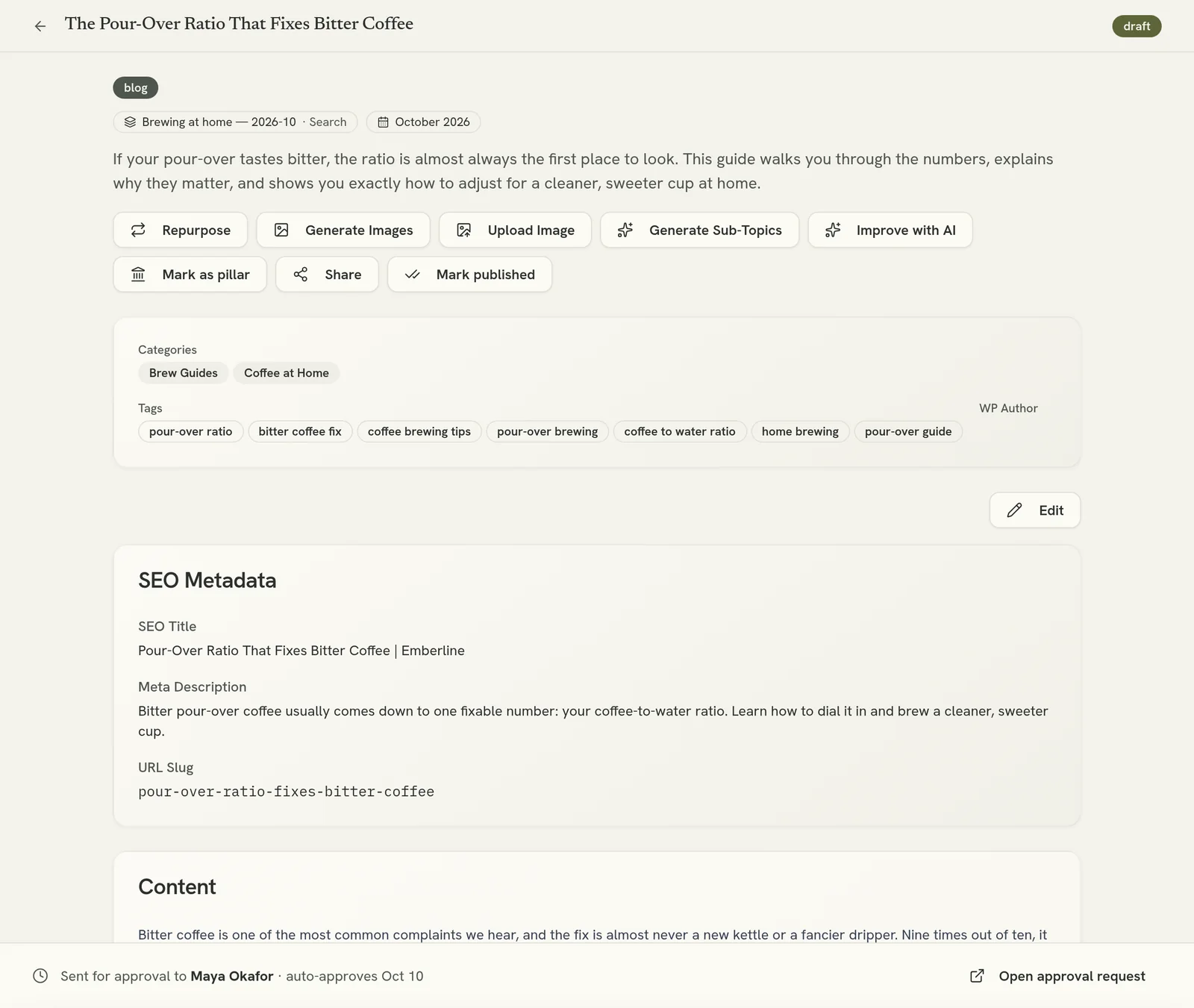
Improve with AI
There are two ways to have Verbolica rework a draft:
- Ask for a specific change in chat. For example, "make the intro punchier" or "cut this to 800 words". Only what you ask for changes; the rest stays as it was.
- Improve. The Improve button on a draft rewrites weak sections using ranking data, competitor pages and performance. Use it to refresh content that is losing positions.
Comment on a passage
Highlight any text and click Comment. You can @mention teammates to notify them. Commented passages are highlighted; click a highlight to jump to its comment.
Clients can comment the same way, including on social post captions. Comments stay attached to their passage even when other parts of the draft are edited.
Version history
Every save, AI improvement and edit creates a version. Open the draft's edit history to compare versions side by side, with changes highlighted in red and green, and restore any earlier version in one click.
SERP grading
The draft page can grade content against what ranks today: competitor pages, the "People also ask" questions and Google's AI Overview. Use it to see what a draft is missing before you send it for approval.