

Social campaigns
Plan, write and publish social posts with branded images, for every platform the brand uses.
Find social media under Content → Social.
Start a campaign
Click Start Social and fill in:
- Campaign name and Target month.
- Platforms: Facebook, Instagram, X (Twitter), LinkedIn, TikTok, YouTube, Threads, Pinterest or Bluesky.
- Executive Profiles: post as a named person, such as the founder, in their own voice. Set these up in Brand Settings → Executives.
- Focus: tie the campaign to a content pillar, a product, or another campaign.
- How many posts?: from 6 to 30, or 0 — Blank Campaign to fill it yourself.
- Brief: the goals, key messages and audience.
Click Generate Campaign. Verbolica plans the post ideas; click Generate all posts to write them.
You can also build a social campaign from a Decisions campaign, or a blended campaign that combines Search and social.
Work with posts
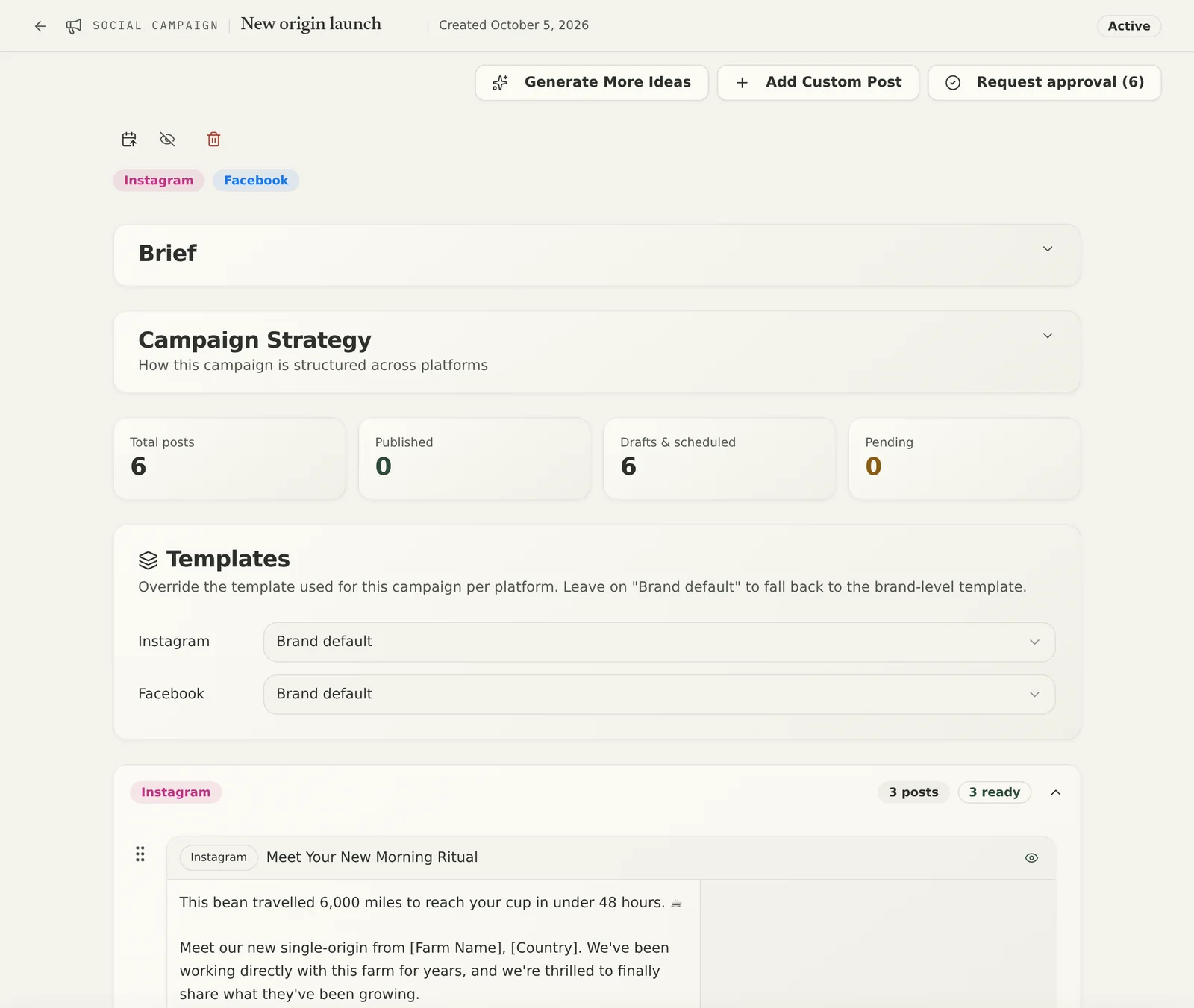
On a campaign page you can:
- edit each post's caption and hashtags
- drag posts into a different order
- add your own post with Add Custom Post: give a topic for Verbolica to write, or switch on Write the content myself
- pick a different image template for one post
- choose which connected account a post goes out on, for example a company page instead of a personal profile
- show or hide the campaign from the client with the eye icon
Images and carousels
Each post gets an image in the brand's style, made from the brand's social image templates. On LinkedIn, Instagram and Facebook, a post can be a carousel of several images: add, remove and reorder slides on the post card.
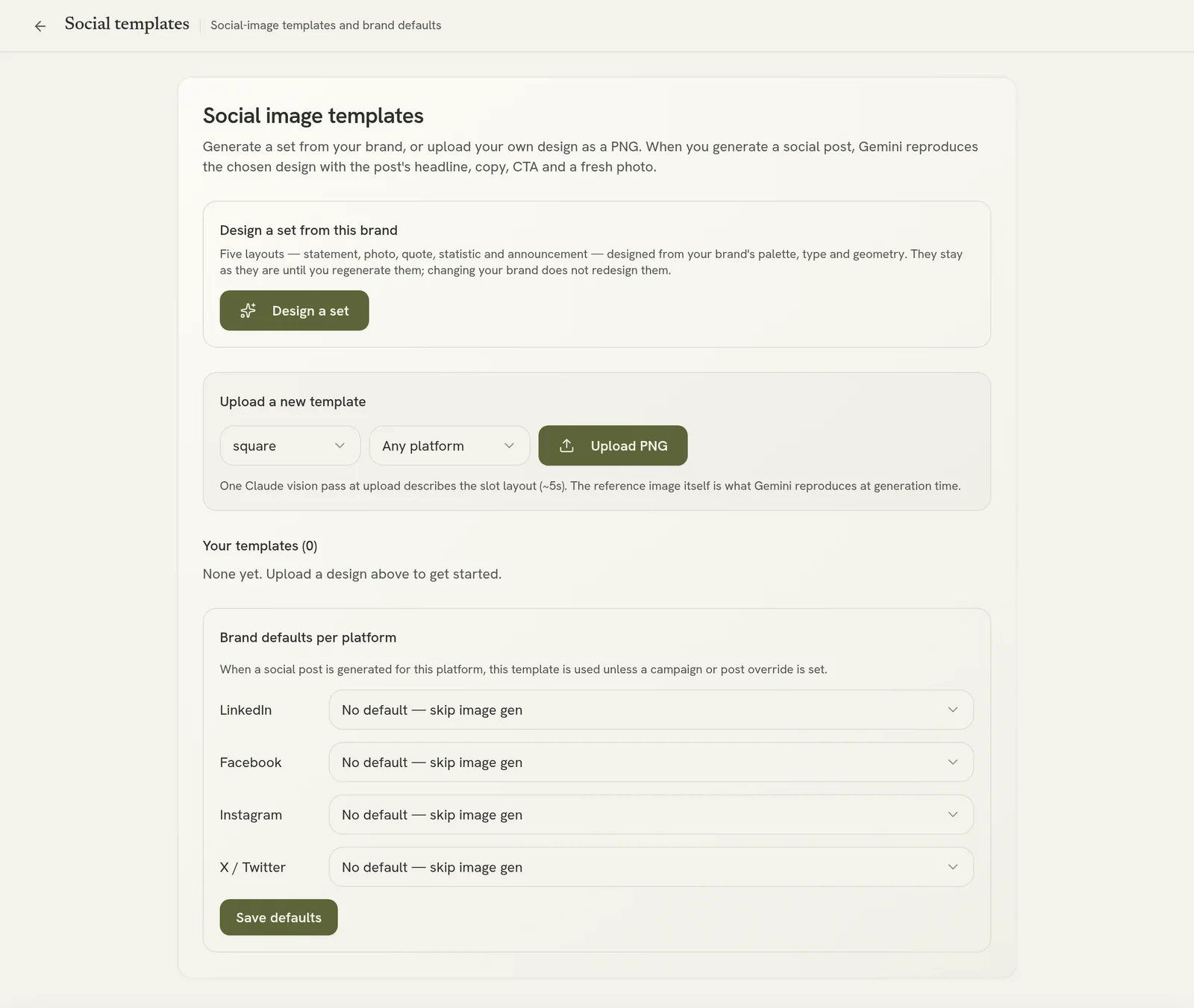
To set up templates, open Social → Templates:
- Design a set from this brand: Verbolica designs a set of templates from the brand's colours, fonts and logo.
- Upload PNG: upload your own template designs.
- Brand defaults per platform: choose which template each platform uses by default. Choose No default to skip images for a platform.
Publish
Send posts for approval first. Once approved, click Publish on a post and choose Publish now or Schedule for later. Posts go out through the brand's connected social accounts.
After a post goes live, a View post link takes you to it on the platform. If a platform rejects a post, it's marked as failed with the reason, and you're notified.