

Website builder
Design on-brand website pages and publish them to WordPress as editable Elementor pages.
The website builder designs website pages in the brand's style and publishes them to the brand's WordPress site. Pages can publish as native Elementor content, so the client can keep editing them in Elementor.
Find it under Content → Website.
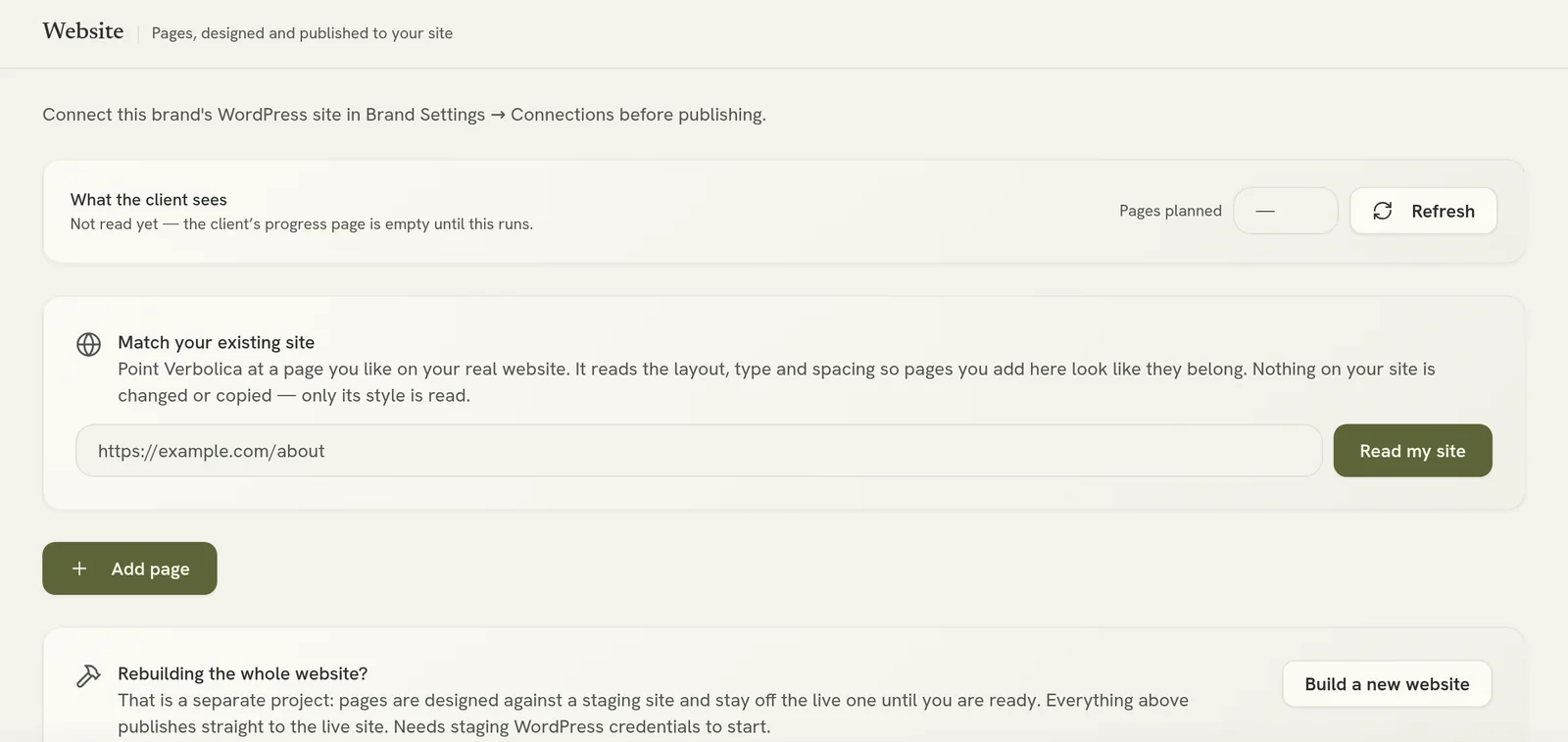
Before you start: connect the site with the WordPress plugin, and fill in the brand's identity (colours, fonts, logo and image style) in Brand Settings. The more complete the brand, the closer the designs land.
Design a page
Add the page
Click Add page, give it a Title and choose a Page type. Optionally choose a page to publish it under, so it sits at an address like /services/this-page/.
Give it its words
Every page needs copy. You can:
- type the words, or a list of points the page must make, into the copy box
- click Write the copy for me to have Verbolica draft it from the brand's details, personas and brand knowledge
- start from an existing page draft: open the draft and click Design this page
To use your copy word for word, tick Keep my copy exactly as written.
Set the brief
All optional:
- Theme: light, dark, or automatic from the brand.
- Creativity: from Classic (clean and conventional) to Expressive (bold type, colour-blocking, motion).
- Page depth: Short (one argument), Standard or Deep (thorough and referenceable).
- Audience and Must include: who the page is for, and the offers, features or proof it has to contain.
- Match the layout of: follow another page's structure. Automatic follows a sibling page under the same parent.
Design it
Verbolica designs the page. Review it in the editor, then refine it.
Design the home page first
The first page you design sets the style the other pages follow, so start with the home page. Choose Design fresh on any page that should ignore the site style.
Refine the design
In the page editor you can:
- Chat: ask for changes in plain English, for example "make the hero shorter" or "add a testimonials section". You can attach a screenshot of a layout you like.
- Edit text on the page: click any text to edit it, with a toolbar for headings, bold, lists, alignment and links.
- Content: edit all the page's text in one panel, grouped by section.
- Improve copy: rewrite the words without touching the design.
- Polish: review the page for layout and readability problems, such as low contrast, and fix them.
- Images: generate an on-brand image, upload your own or point at a URL.
- Insert a form: place a form from the site's form plugin, such as Gravity Forms, Elementor Forms or Contact Form 7.
- History: go back to an earlier version.
Get approval
Click Approval to send the design to the client before it goes live. The page can't publish while it's waiting on a decision.
Publish
Click Publish to your live site. Use the arrow beside it to choose how it publishes:
- Verbolica page: the design exactly as designed.
- Native Elementor: converted into real Elementor sections and widgets, so the client can edit every heading, button and image in Elementor.
Other publishing options:
- Include the site's header & footer: keep it on for a normal page; turn it off for a standalone landing page.
- Search visibility: choose whether search engines may index the page.
- Replace a page: publish over an existing page on the site instead of creating a new one.
Images are uploaded to the site's own media library, so the live page doesn't depend on Verbolica.
Republishing overwrites Elementor edits
Publishing again replaces the page in WordPress. Any changes made directly in Elementor since the last publish are lost. Once the client is editing a page in Elementor, make further changes there.
Header, footer and other templates
On a site with Elementor Pro, the Site templates card designs the site's header (including mega menus), footer, 404 page, search results and blog templates in the same style.
See the whole site
Click Sitemap to see the live site's pages as a map, showing which pages are designed and live, designed but not live, or not designed yet.
Credits
Designing, polishing and editing pages spend the brand's credits. See Credits.